
Have you ever wanted to play your favorite songs or take calls hands-free while driving, but didn’t know how to connect your iPhone to your car stereo? You’re not alone.
Connecting your iPhone to your car stereo can seem tricky, but once you know the simple steps, it becomes effortless. In this guide, you’ll discover easy methods to link your devices quickly and enjoy a safer, more enjoyable drive. Ready to transform your car rides with seamless music and calls?
Keep reading—you’re just moments away from mastering the connection.

Credit: aluratek.com
Check Car Stereo Compatibility
Checking your car stereo compatibility is the first step to connect your iPhone. Not all car stereos support every connection type. Knowing the options helps you choose the best way to link your phone.
Identify Available Connection Options
Look at your car stereo’s user manual or screen menus. It may list connection types like Bluetooth, AUX, or USB. Some newer models show icons for wireless or wired connections. Take note of all available options before proceeding.
Verify Bluetooth Support
Bluetooth is the easiest way to connect your iPhone without cables. Check if your car stereo has Bluetooth settings or a Bluetooth logo. If yes, your stereo likely supports wireless music and call functions. Make sure Bluetooth is enabled on both devices for a smooth connection.
Assess Auxiliary And Usb Ports
Many cars have auxiliary (AUX) and USB ports for wired connections. The AUX port usually looks like a small headphone jack. The USB port allows charging and music playback. Inspect your stereo panel or dashboard for these ports. Using cables can provide a stable connection and clear sound.

Credit: aluratek.com
Prepare Your Iphone
Preparing your iPhone is essential before connecting it to your car stereo. This ensures a smooth and stable connection. Small settings changes help avoid common issues. Follow these simple steps to get your iPhone ready for pairing.
Enable Bluetooth And Wi-fi
Turn on Bluetooth from the Settings app. This allows your iPhone to find your car stereo. Wi-Fi should also be enabled for some car systems that use wireless connections. Both must be active for seamless pairing and audio streaming.
Update Ios For Compatibility
Check for the latest iOS updates. New updates fix bugs and improve device compatibility. Go to Settings > General > Software Update. Install any available updates to ensure your iPhone works well with your car stereo.
Check Audio Settings
Adjust your iPhone’s audio settings before connecting. Open Settings > Sounds & Haptics. Make sure the volume is up and the mute switch is off. Confirm that Bluetooth audio output is selected when connected to the car stereo.
Connect Via Bluetooth
Pair your iPhone with your car stereo through Bluetooth by enabling Bluetooth on both devices. Select your car’s system from the iPhone’s Bluetooth menu to connect and enjoy hands-free calls and music.
Connecting your iPhone to your car stereo via Bluetooth simplifies your driving experience. Bluetooth offers a wireless connection for seamless music streaming and hands-free calls. This connection method enhances convenience and safety on the road.
Pair Iphone With Car Stereo
Start by enabling Bluetooth on your iPhone. Go to Settings, then Bluetooth, and toggle it on. Activate your car stereo's Bluetooth mode. Check your car manual if unsure. Your iPhone will search for nearby devices. Select your car stereo from the list. Confirm any pairing codes that appear. Your devices should now be connected.
Troubleshoot Connection Issues
Having trouble connecting? Ensure both devices have Bluetooth enabled. Restart both your iPhone and the car stereo. This often solves minor issues. Check if your car stereo supports your iPhone model. Update your iPhone's software to the latest version. A quick reset of network settings can help too. Sometimes interference from other devices can cause issues.
Manage Paired Devices
Managing paired devices on your iPhone keeps connections organized. Go to Settings, then Bluetooth. You'll see a list of paired devices. Select any device to disconnect or forget it. This helps if you have multiple devices. Keeping your list clean ensures better performance. Regularly update this list for an optimal connection.
Use Auxiliary Cable Connection
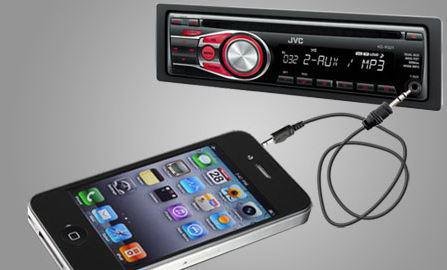
Using an auxiliary cable is a simple and direct way to connect your iPhone to a car stereo. This method works with most vehicles that have a 3.5mm aux input. It does not require Bluetooth or special apps. Just plug the cable, and your music plays through the car speakers.
Select The Right Cable
Choose a 3.5mm male-to-male auxiliary cable. Check the cable length to fit your car comfortably. A cable with gold-plated connectors offers better sound quality. Avoid very cheap cables to reduce static and noise.
Plug In And Adjust Settings
Insert one end of the aux cable into your iPhone’s headphone jack or Lightning to 3.5mm adapter. Plug the other end into the car’s aux input. Set the car stereo to “AUX” mode using the source or media button. On your iPhone, play any audio to confirm the connection.
Optimize Audio Quality
Lower the iPhone volume first, then adjust the car stereo volume. This prevents distortion and keeps sound clear. Turn off equalizer settings on your iPhone for a natural audio output. Keep the aux cable away from chargers or USB cables to avoid interference.
Connect Using Usb Cable
Connecting your iPhone to your car stereo using a USB cable is one of the simplest and most reliable ways to enjoy your music, podcasts, and calls while driving. This method ensures stable audio quality and allows you to charge your phone simultaneously. Let’s break down how to make this connection smoothly and take full advantage of your car’s audio system.
Locate Usb Port In Car
Most modern cars come equipped with a USB port, but its location can vary widely. Common spots include the center console, dashboard, glove compartment, or even inside the armrest storage. Take a moment to check these areas; your car’s manual can also guide you directly to the port.
Have you noticed how some USB ports are labeled with a music note or a smartphone icon? These symbols indicate data transfer capability, which is essential for connecting your iPhone, not just charging it. Avoid using USB ports meant only for charging, as they won’t transmit audio.
Establish Connection With Iphone
Once you find the right USB port, plug in your iPhone using a Lightning-to-USB cable. If your phone prompts you to trust the car’s system, tap “Trust” to allow data transfer. This step is crucial for the car stereo to access your music and apps.
Sometimes, the stereo might not recognize your iPhone immediately. Try restarting both your phone and the car’s infotainment system if this happens. Have you checked if your iPhone’s software is up to date? Compatibility issues often stem from outdated iOS versions.
Control Audio Through Car Interface
After the connection is established, your car stereo should display your iPhone’s music library, playlists, or podcast apps. Use your car’s touchscreen, buttons, or steering wheel controls to browse and play audio without touching your phone. This keeps your focus on the road.
Many car systems also support Siri voice commands through the stereo interface. This means you can ask Siri to play a specific song or make a call without lifting your hands. Have you tried using voice commands while driving? It’s a safer way to interact with your phone’s features.

Credit: aluratek.com
Utilize Apple Carplay
Utilize Apple CarPlay to make your driving safer and more enjoyable. This feature allows your iPhone to connect with your car’s stereo. It shows apps on the car’s display for easy access. You can use maps, music, and messaging without touching your phone.
Check Carplay Availability
Not all cars support Apple CarPlay. Check your car manual or manufacturer website. Look for CarPlay logos on the dashboard or infotainment system. Your iPhone must run iOS 7.1 or newer. Also, CarPlay works with iPhone 5 or later models.
Set Up Carplay On Iphone
Use a Lightning cable to connect your iPhone to the car. Some cars support wireless CarPlay. On your iPhone, go to Settings > General > CarPlay. Select your car’s name from the list. Follow prompts to allow permissions and customize settings. You can add or remove apps for CarPlay here.
Navigate And Control Audio
Use the car’s touchscreen or voice commands to control CarPlay. Press the voice button on the steering wheel to activate Siri. Say commands like “Play music,” “Call Mom,” or “Get directions.” Use Apple Maps for turn-by-turn navigation. Control audio apps like Apple Music, Spotify, or Podcasts easily. This keeps your focus on the road and hands on the wheel.
Troubleshoot Common Problems
Connecting an iPhone to a car stereo should be simple, but issues can arise. Troubleshooting common problems helps keep your drive smooth and your music playing. Understanding typical errors and their fixes saves time and frustration.
Fix Audio Playback Issues
Audio problems often come from low volume or no sound. Check the car stereo volume and phone media volume. Mute settings on either device can stop playback. Restart the music app or try another app to see if sound plays.
Inspect the cable or Bluetooth connection for damage or interference. Clean audio ports to remove dust or dirt. Updating your iPhone and car stereo software can solve bugs causing playback issues.
Resolve Connection Drops
Connection drops interrupt music and calls. Keep the iPhone close to the stereo for a strong Bluetooth signal. Avoid obstacles like metal objects or other wireless devices that cause interference.
Turn off and on Bluetooth on your iPhone to reset the connection. Forget the car stereo from Bluetooth settings and re-pair it. Check for firmware updates on your car stereo to fix bugs.
Address Compatibility Errors
Some car stereos may not support all iPhone features. Verify your car stereo supports your iPhone model and iOS version. Use Apple-approved cables or adapters to avoid compatibility issues.
Check the stereo manual for any special settings for iPhone connection. Reset the car stereo to factory settings if errors persist. Consider using alternative connection methods like USB or auxiliary input.
Enhance Audio Experience
Connecting your iPhone to your car stereo is just the first step to enjoying music on the road. To truly enhance your audio experience, you need to fine-tune how the sound comes through. Small adjustments can make a big difference in clarity, bass, and overall enjoyment of your favorite tracks.
Adjust Equalizer Settings
Most car stereos and iPhones offer equalizer (EQ) settings that let you change sound frequencies. Play with bass, midrange, and treble levels until the music feels just right. If you like punchy bass for road trips or crisp highs for podcasts, tweaking the EQ can deliver that.
Have you noticed how some songs sound flat without EQ adjustments? Experimenting with presets like “Rock,” “Pop,” or “Jazz” can reveal new details in your music. Don’t be afraid to create your own custom EQ settings for your unique taste.
Use Quality Audio Apps
The app you use to play music matters. Some apps compress audio more than others, which can reduce sound quality. Try apps known for high-quality playback, like Apple Music, Spotify Premium, or Tidal, to get richer sound.
Think about how often you skip songs because of poor audio. Switching to an app that supports lossless audio or higher bitrates can change how your favorite tracks feel. Your ears will thank you after a few drives.
Maintain Car Stereo Hardware
Even the best settings won’t help if your stereo hardware is dirty or damaged. Dust, loose connections, or worn speakers can dull sound quality significantly. Regularly clean your stereo and check speaker wires for any damage.
Have you checked your speaker covers lately? Dirt or debris trapped inside can muffle sound. Keeping your hardware in good shape ensures that every beat and lyric comes through clear and powerful.
Frequently Asked Questions
How Do I Connect Iphone To Car Stereo Via Bluetooth?
To connect, enable Bluetooth on both iPhone and car stereo. Select your car stereo from iPhone’s Bluetooth list. Confirm pairing by entering the code if prompted. This allows wireless audio streaming and hands-free calling through the car stereo system.
Can I Use A Usb Cable To Connect Iphone To Car Stereo?
Yes, using a USB cable connects your iPhone directly to the car stereo. It allows audio playback, charging, and access to apps via the stereo’s interface. Use the original Apple USB cable for best compatibility and performance.
Why Isn’t My Iphone Connecting To The Car Stereo?
Check if Bluetooth is enabled on both devices. Ensure the car stereo is in pairing mode. Restart both devices and try again. Verify software updates on the iPhone and stereo for compatibility. Clear old paired devices if connection issues persist.
How To Play Music From Iphone On Car Stereo?
After connecting via Bluetooth or USB, open your preferred music app on iPhone. Play the desired songs or playlists. The audio will stream through the car stereo speakers automatically. Adjust volume from either the iPhone or the stereo controls.
Conclusion
Connecting your iPhone to a car stereo is simple and quick. Use Bluetooth or a cable for the best sound. Check your car manual for exact steps. Keep your phone updated for smooth pairing. Enjoy hands-free calls and music while driving.
Stay safe and focus on the road. Now you can drive with better sound and ease. Try these tips and make your car rides more fun.